This page, including most documents and links, is restricted to the HR Staff and Admin Officers group only.
Purpose
The “Title IX-Code of Conduct, Workplace Violence Prevention, COI, and State of Hawaii Ethics Course Status” report shall be used by HR specialists to monitor training and to inform supervisors on employee needs training. Due to the flexibility of the report, access within the LMS is limited to HR. This document will demonstrate how to navigate to, configure the filters for, and download the report.
Access
To be provisioned access to the LMS reporting, please fill out the HR Application Request Form and request to be added to the LMS – Analytics HR Role.
Navigating to the Report
The fastest way to navigate to the report is to use the direct link and login with your UH credentials when prompted:
OR you may find the report by doing the following:
- Log in to Saba LMS
- Click the hamburger menu (top left) to open the side menu then click Admin
- In Admin Home, click Analytics Admin
- If you do not see the report in the Recently Viewed section, you may change your search filters using the search dropdown


Configure the Report Filters
When you first view the report, you will be asked which organization you want to run your report on. It is recommended that you:
- Click the organization hierarchy icon to filter for your organization.
- Begin typing the organization name and the organization tree will expand based on its results. Select the organization(s) you want to include in your report and click ADD.
- After you define your organization(s) filters, you may click either Run or Save and Run. Clicking Save and Run will save your filters on your account so you will not need to configure the organization again.


Note: After you run the report, you’re able to change the filtered organization by expanding the filters.
Downloading the Report
- Navigate to the top of the page and click the download icon.
- You will be able to download the report as a PDF, Excel, or CSV file. Select your desired file type, check “Data Only” and click Download.
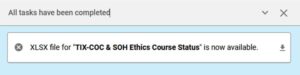
- A dialog box will open at the bottom of the page. Saba will attempt to compile the report for you. Once the download is ready, click the task. Your report will begin downloading.